An unknown subscription charge can look like fraud, but it may also be a renewal, a purchase made through another account, or a merchant using a billing name you do not recognize. Before disputing the payment, follow the checks below to identify who charged you and whether the payment is legitimate.
If you suspect that someone has stolen your card details, lock the card in your banking app and contact the card issuer immediately.
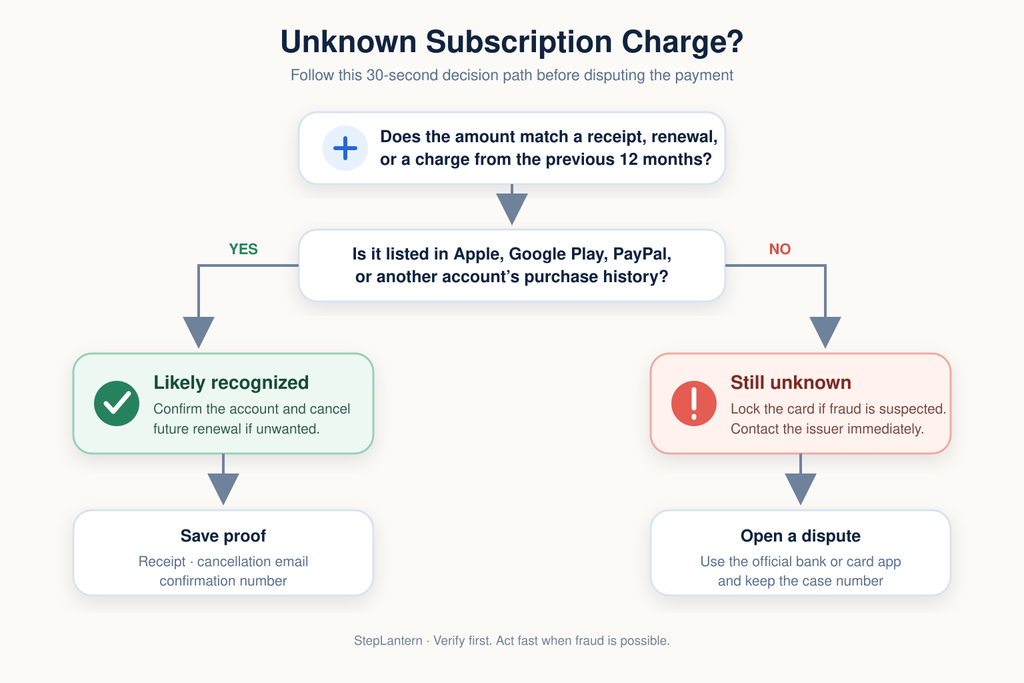
Quick identification checklist
- Write down the exact billing descriptor, amount, and date.
- Search the descriptor online using quotation marks.
- Check email receipts for the amount and transaction date.
- Review Apple, Google Play, and PayPal purchase histories.
- Ask family members or authorized card users.
- Compare the charge with earlier monthly or annual payments.
- Contact the merchant using contact details from its official website.
- Contact your card issuer if the charge remains unknown.
Read the complete billing descriptor
Start with the transaction exactly as it appears on your bank or card statement. Do not rely only on a shortened mobile notification.
Open the transaction details and record:
- The complete merchant descriptor
- The amount and currency
- The transaction and posting dates
- The city, country, phone number, or website shown
- Whether the payment is pending or completed
- Any reference or transaction number
The name on a statement may be the merchant’s legal company name, payment processor, parent company, app developer, or shortened trading name. This is why a legitimate subscription can initially appear unfamiliar.
Search the complete descriptor online inside quotation marks. Add terms such as “charge,” “subscription,” or “billing” if the first search is unclear. Do not call a phone number from an unverified search result. Use the merchant’s official website or the number printed on the back of your card.
Match the amount with receipts and renewals
Search every email account you use for purchases. Useful searches include:
- The exact amount
- The billing descriptor
- “Receipt”
- “Renewal”
- “Subscription”
- “Free trial”
- “Payment confirmed”
- The transaction date or month
Check spam, trash, archived messages, and secondary email accounts. A service may send its receipt to the email address used when the account was created rather than your current primary address.
Next, review the previous 12 months of statements. Monthly plans are usually easy to spot, but annual renewals may appear only once a year. The amount may also have changed because of tax, currency conversion, a price increase, or the end of a promotional rate.
Check whether the charge is still pending
A pending transaction is not always a completed charge. It may be a temporary authorization used to verify a new payment method, hotel reservation, rental, fuel purchase, or canceled order.
Pending authorizations can sometimes resemble duplicate payments. One entry may disappear after the merchant or bank completes processing. Ask the card issuer how long pending authorizations normally remain before filing a duplicate-charge dispute.
However, contact the issuer immediately if you believe the card information was stolen. Do not wait for a suspicious payment to settle before protecting the account.
Check Apple purchase history
A statement entry containing “apple.com/bill” can relate to an app, digital content, subscription renewal, or a purchase made by a family member. Apple may also combine multiple purchases into one charge.
Go to Apple’s Report a Problem page and sign in with the Apple Account used for purchases. Compare the statement amount with the purchase history. If Family Sharing is enabled, review purchases made by family members as well.
If there is no match, check any other Apple Accounts you may have used. Apple’s official guidance explains how to identify an apple.com/bill charge.
Check Google Play and Google Payments
Google Play charges generally begin with a descriptor such as:
- GOOGLE*App developer name
- GOOGLE*App name
- GOOGLE*Content type
Open the Google Play Store, select your profile, and go to Payments & subscriptions, then Budget & history. You can also visit Google Payments and check both Activity and Subscriptions & services.
Repeat this check for every Google Account used on your devices. Google recommends comparing the statement with your purchase history and checking whether a family member made the purchase. Its official help page explains how to review Google purchase history.
If the descriptor begins with Google but no authorized purchase matches it, use Google’s official process to report an unrecognized charge.
Check PayPal automatic payments
A merchant can charge PayPal through an automatic payment agreement even when the service is not obvious from your active subscriptions.
On the PayPal website:
- Open Settings.
- Select Payments.
- Open Subscriptions and saved businesses or Automatic Payments.
- Select each unfamiliar merchant.
- Review its payment history and contact information.
PayPal’s official instructions explain how to find and cancel automatic payments.
Canceling an automatic payment may stop future PayPal payments, but it does not necessarily cancel a separate contract or balance with the merchant. Check the merchant’s cancellation terms as well.
Quick platform lookup
| Platform | Descriptor clue | Where to check | Next step |
|---|---|---|---|
| Apple | APPLE.COM/BILL | Purchase History or reportaproblem.apple.com | Contact Apple Support |
| Google Play | GOOGLE* plus app or developer | Google Play order history or payments.google.com | Report an unrecognized charge |
| PayPal | PAYPAL* plus merchant | Settings > Payments > Automatic Payments | Use the Resolution Center or card issuer |
Ask other authorized users
Before treating an unknown subscription charge as fraud, ask anyone who can legitimately use the payment method. This may include:
- A spouse or partner
- Children or other family members
- An employee using a business card
- Members of an Apple or Google family group
- Anyone using a shared television, game console, tablet, or computer
Ask about free trials and in-app purchases, not just subscriptions they remember buying. Do not share your full card number, password, verification code, or security answers while investigating.
Contact the merchant safely
If you identify a likely merchant, contact it through its official website or app. Provide only the information needed to locate the transaction:
- Transaction date
- Amount and currency
- Billing descriptor
- Last four digits of the card
- Receipt or transaction reference
Ask the merchant to explain the charge, identify the account connected to it, cancel future renewals if requested, and email written confirmation.
Never send a full card number, card security code, banking password, or one-time verification code by email or chat.
Decide whether it is a forgotten subscription or fraud
A forgotten subscription is more likely when:
- The amount matches a receipt or purchase history
- The same merchant charged you previously
- A family member recognizes the purchase
- The charge corresponds to a free-trial conversion
- The merchant can identify the associated account
Possible fraud is more likely when:
- Nobody authorized the transaction
- There are several small test charges
- Purchases appear in unfamiliar countries or currencies
- The merchant cannot find an account connected to you
- New charges continue after the card or account was secured
- You notice unfamiliar password resets or login alerts
If the charge appears fraudulent, lock or freeze the card if that feature is available. Then call the issuer using the number on the back of the card or inside the official banking app.
Dispute an unresolved charge
Contact the merchant first when the transaction is recognizable but incorrect, duplicated, or charged after cancellation. Save receipts, cancellation emails, chat transcripts, dates, names, and confirmation numbers.
If the merchant does not resolve the problem—or if the transaction was never authorized—contact the card issuer and ask about its dispute process. Deadlines and consumer protections differ by country, payment method, and issuer, so act promptly.
In the United States, the Consumer Financial Protection Bureau’s dispute guidance explains the credit-card billing-error process. The Federal Trade Commission also recommends keeping cancellation records and disputing continuing charges when a company will not stop billing.
Continue paying the undisputed portion of your statement according to your issuer’s instructions. Do not assume that replacing a card automatically cancels every subscription agreement.
What to tell your card issuer
Have the following details ready:
- Merchant descriptor
- Amount and date
- Why you believe the charge is unauthorized or incorrect
- Steps taken to identify it
- Any contact with the merchant
- Cancellation or refund confirmation
- Supporting screenshots and receipts
Ask whether the card should be replaced, whether recurring payment tokens must be blocked, and how to monitor the dispute. Save the case number and submission date.
How to prevent future unknown subscription charges
Keep a simple subscription list containing the service name, billing descriptor, amount, renewal frequency, payment method, and cancellation date. Review it whenever you start a free trial or change cards.
Set transaction alerts for every card and review statements at least once a month. Use unique passwords and multi-factor authentication for your email, Apple, Google, PayPal, and banking accounts.
For a broader audit, follow our guide on how to find and cancel forgotten subscriptions.
Final takeaway
An unknown subscription charge is not automatically fraud. First inspect the full descriptor, search receipts, review platform purchase histories, and check with authorized users. If you still cannot identify the payment—or see other signs of account misuse—secure the card and contact the issuer without delay.
Last checked: September 2026. Platform menus and dispute rules may change, so confirm the current instructions with the provider or card issuer.